


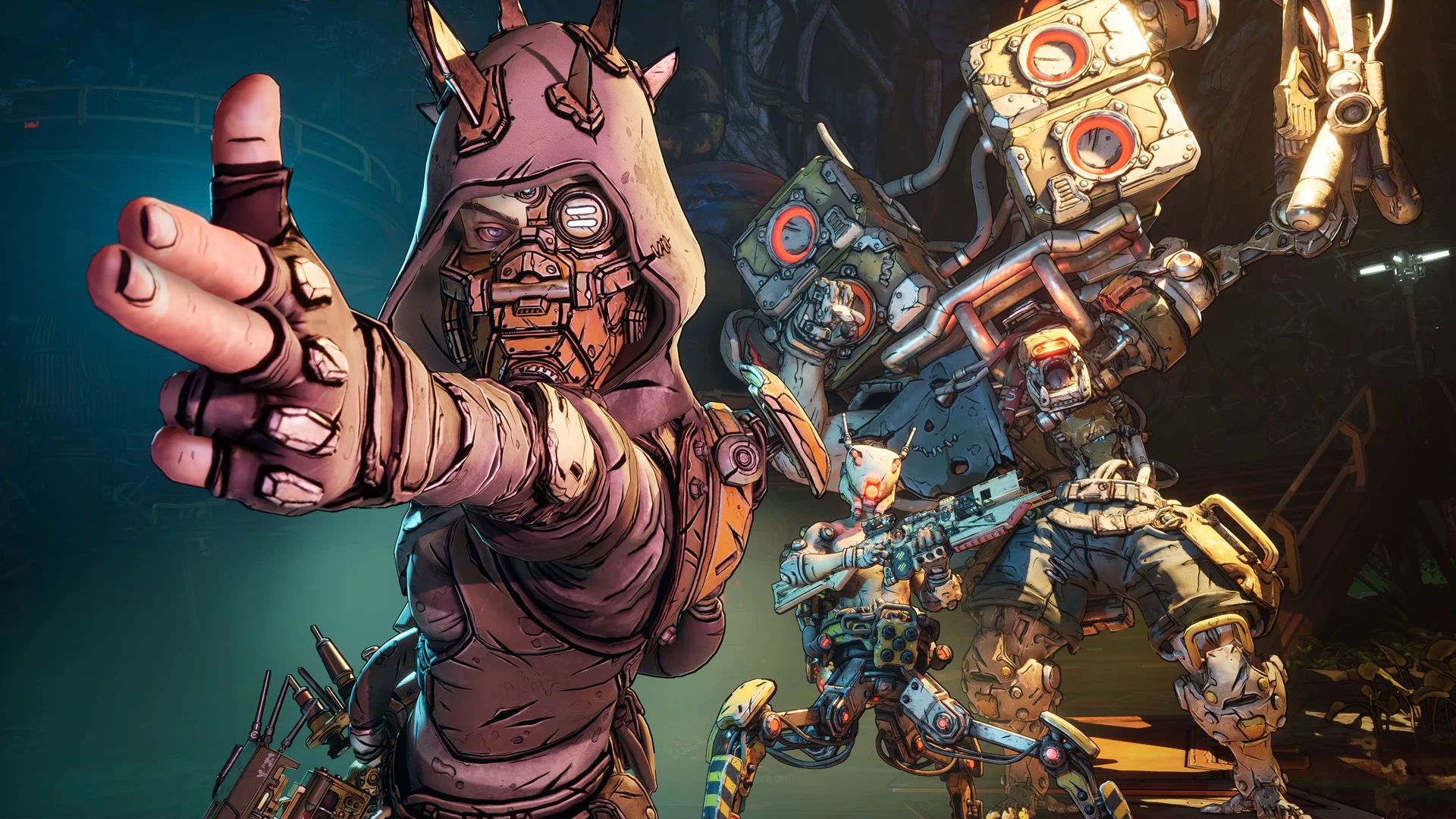

Borderlands 4 has finally landed, and while plenty of players are happily blasting psychos and looting shiny new guns, a different crowd is staring at something less exciting: frame drops, stuttering, and the occasional crash to desktop. The game’s debut earlier this week, pulled in over 252,000 peak players on Steam, but it racked up “Mostly Negative” reviews at first before slowly climbing to “Mixed” — not because people suddenly hate Borderlands’ gun-and-giggle formula, but because their rigs are choking on it.
Gearbox and 2K have already released an official performance guide, but the community is chiming in with their own fixes too. We’ve mashed the two together here into one big loot chest of practical settings and tips. Whether you’re rocking a mid-tier laptop, a monster 4090, or a humble potato rig you refuse to quit on, here’s how to make Borderlands 4 run smoothly on PC.
Let’s start with what Gearbox says you need to run the game:
Official System Requirements
Minimum Requirements
- OS: Windows 10 / Windows 11 (64-bit)
- CPU: Intel Core i7-9700 or AMD Ryzen 7 2700X
- RAM: 16 GB
- GPU: NVIDIA GeForce RTX 2070 / AMD Radeon RX 5700 XT / Intel Arc A580
- DirectX: Version 12
- Storage: 100 GB SSD required
- Notes: Requires 8GB VRAM, 6+ CPU cores
Recommended Requirements
- OS: Windows 10 / Windows 11 (64-bit)
- CPU: Intel Core i7-12700 or AMD Ryzen 7 5800X
- RAM: 32 GB
- GPU: NVIDIA GeForce RTX 3080 / AMD Radeon RX 6800 XT / Intel Arc B580
- DirectX: Version 12
- Storage: 100 GB SSD required
- Notes: Requires 8GB VRAM, 8+ CPU cores
In plain English: you can technically run the game on a budget PC, but if you want Borderlands 4 to look like a comic book fever dream instead of a slideshow, you’ll need a modern GPU and an SSD. Meeting the minimum gets you into the party. Hitting the recommended requirements makes sure you have enough juice to make the game run smoother and look prettier.
Baseline Fixes
Before tweaking sliders, try these universal fixes. They’re the equivalent of “did you turn it off and on again?” — simple, but surprisingly effective:
- Update your drivers. NVIDIA and AMD both dropped launch-day drivers optimized for Borderlands 4. Grab them.
- Kill background apps. Chrome, Discord overlays, GeForce Experience — anything hogging resources.
- Use DX12 mode. Borderlands 4 runs best on DirectX 12 for most players. If you get crashes, fall back to DX11.
- Set texture streaming to Medium. High and Ultra cause VRAM spikes and stutters unless you’ve got 12+ GB VRAM.
- Enable adaptive V-Sync. This keeps your frames smooth without locking you into a permanent 60fps jail.
Do these first — they alone can smooth out a lot of launch-week frustration.
Recommended Settings by Rig
Here’s where the rubber meets the loot chest. Different rigs need different approaches, so we’ve broken it down into low, mid, and high tiers.
Low-End PCs (Around Minimum Spec – RTX 2070 / RX 5700 XT level)
- Resolution: 1080p (drop to 900p if desperate)
- Shadows: Low
- Textures: Medium
- Foliage: Low
- Anti-Aliasing: FXAA only
- Post-Processing: Low
- Motion Blur: Off
You’ll hover around 40–60fps, but it’s playable if you’re willing to compromise.
Mid-Tier PCs (RTX 3070–4070 / RX 6800 XT level)
- Resolution: 1440p
- Shadows: Medium
- Textures: High
- Effects: Medium–High
- Foliage: Medium
- Anti-Aliasing: TAA
- Motion Blur: Off
- FPS Cap: 90–120
This setup hits the current sweet spot — smooth gameplay at 1440p without gutting visuals.
High-End PCs (RTX 4080 / 4090 / RTX 50-series / RX 7900 XTX equivalent)
- Resolution: 4K (DLSS/FSR Quality enabled)
- Shadows: High
- Textures: Ultra (12GB+ VRAM recommended)
- Effects: High
- Foliage: High
- Anti-Aliasing: TAA + sharpening
- Motion Blur: Optional (Michael Bay mode)
If you’re running a rig in this tier, you’re not fighting stutters — you’re just deciding how crispy you want Pandora (sorry, Kairos) to look at 4K.
Troubleshooting Stuttering & Crashes
Even with the right settings, Borderlands 4 has some specific gremlins. Here’s how to squash them:
- Texture stutter – Drop texture streaming to Medium.
- Shader compilation stutter – Let the game precompile shaders on first boot. It’s boring, but it helps.
- Cutscene crashes – Disable overlays like Steam, Discord, or GeForce Experience.
- Random micro-stuttering, toggle between borderless fullscreen and exclusive fullscreen — some rigs prefer one over the other.
- Verify your game files on Steam or Epic — corrupted installs can cause crashes or missing textures.
- Try running the game as Administrator, or in Windows 10 compatibility mode if you’re on Windows 11 — it fixes odd launch quirks for some players.
- If stuttering persists, clear your shader cache (NVIDIA: delete DXCache files; AMD: reset via Adrenalin app). This forces the game to rebuild them cleanly.
Think of these as mini-bosses: annoying, but beatable.
Why the Performance Woes?
Borderlands 4 isn’t unplayable, but the complaints are consistent: CPU bottlenecking, VRAM overuse, and shader stutters. The good news is that Gearbox has already promised stability patches in the coming weeks. Until then, you’re going to want to tinker with your settings like you’re min-maxing loot. Intel has also flagged potential instability on 13th/14th gen CPUs, which can cause random spikes or crashes under load — something to keep in mind if you’re running new hardware.
Final Tips
- If you’re on older hardware, experiment with resolution scaling (try 90% or even 85%). It keeps visuals sharp while boosting FPS.
- SSDs aren’t optional here — HDD players are reporting brutal load times.
- Keep an eye on the official Borderlands Twitter and Steam News Hub for hotfix notes.
- Don’t ignore the community: Reddit and Steam forums are already finding config tweaks hidden in
.inifiles.
Borderlands 4 is still very playable on PC — you just need to coax it into behaving. With the right tweaks, the game transforms from a stuttering mess into the loot-shooter chaos you signed up for. It’s not ideal that players have to babysit their settings on day one, but at least the fixes are straightforward.
Until Gearbox drops more patches, think of this guide as your Vault Hunter starter pack: not flashy, but guaranteed to keep your adventure from turning into a PowerPoint presentation.
